ANIMEMON Controls Guide
Desktop, mobile, and console input habits for exploration, menus, and turn-based battles.
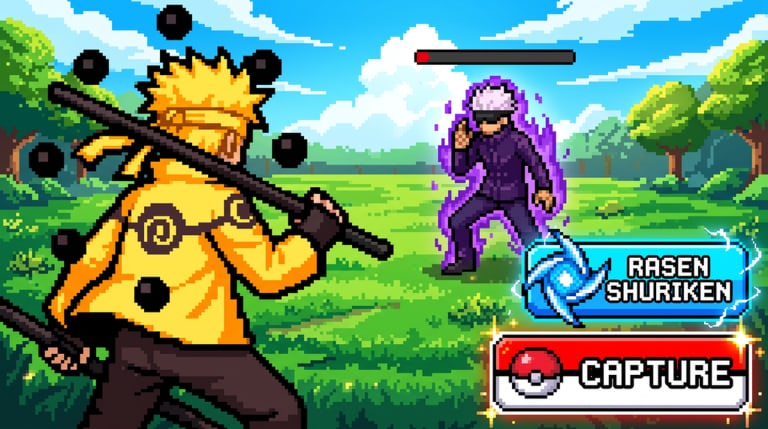
Why controls matter in ANIMEMON
ANIMEMON is a turn-based creature RPG from Rendroide Games on Roblox. You walk the world, open menus, pick moves in battle, switch party members, manage inventory, and check the map. Clean input habits save more runs than raw levels — especially when a trainer fight starts and you still have the wrong lead out.
This page teaches where to look for bindings and how each platform usually feels. Exact keybinds can vary by Roblox client settings, device layout, and future patches from Rendroide Games. Treat on-screen HUD labels as the source of truth, then cross-check Roblox settings when something feels wrong.
Pair this guide with Getting Started for your first hour and Battle basics once fights get serious.
Where to find your real bindings
Before memorizing a chart from a wiki, open the live game and confirm:
- Press Esc (or the Roblox menu button on console / the Roblox logo area on mobile) to open the Roblox Escape menu.
- Open Settings and review keyboard, gamepad, and touch options that Roblox exposes for your device.
- Return to ANIMEMON and scan the in-game HUD — battle buttons, menu icons, and proximity prompts usually show the active confirm / cancel labels.
- If a prompt and your muscle memory disagree after a patch, trust the prompt and re-bind in Roblox settings if needed.
Do not assume a YouTube video from another creature RPG uses the same layout. ANIMEMON shares the Roblox input stack, but its own menus and battle UI are unique.
Desktop / keyboard
Most PC trainers explore with keyboard + mouse:
| Action | Typical desktop habit |
|---|---|
| Move | WASD or arrow keys |
| Camera | Mouse drag / right-stick equivalent via mouse |
| Jump | Space (when the map allows it) |
| Interact / talk / pickup | E or on-screen proximity prompt click |
| Open main menu / bag | HUD button click or a menu hotkey shown in UI |
| Confirm in menus & battle | Left click or Enter |
| Cancel / back | Esc or a Back UI button |
Exploration loop
Walk routes carefully. Wild Animemon encounters and NPC trainers often sit near path edges. Keep your finger near interact so you do not sprint past a shop or heal NPC. When the map feels crowded (servers cap around 15 players), slow down before corners so you can read prompts.
Menus, inventory, and party
On desktop, mouse precision makes inventory and party reordering easy:
- Open the bag before hard rooms and confirm capture items, healing, and status cures are stocked.
- Reorder your party so the intended lead is slot one before you step on a trainer tile.
- Check move lists after evolutions so you are not still clicking early junk moves mid-fight.
Redeem free rewards from the Codes hub on keyboard without fighting an on-screen keyboard — a small quality-of-life win versus console.
Battle inputs on PC
Turn-based combat rewards deliberate clicks:
- Read the opposing Animemon and your available moves.
- Select Fight / Moves, then the specific attack.
- Use Switch when the matchup is bad instead of forcing a resisted hit.
- Open Items only when a heal or status cure actually changes the turn outcome.
If you misclick a move, pause before the next turn and slow your cursor. Speed-clicking is how players burn PP and black out. Capture-focused fights need the same care — see How to capture.
Mobile / touch
Mobile and tablet share the same systems with a touch-first HUD:
- Virtual joystick or swipe zone for movement
- On-screen buttons for jump, interact, and menu
- Tap targets for battle moves, switches, and items
- Pinch / drag camera controls depending on Roblox touch settings
Touch tips that prevent softlocks
- Increase graphics stability over max beauty so taps register during animations.
- Use two thumbs: one for movement, one for HUD buttons, so you can heal between multi-trainer rooms without dropping the stick.
- When redeeming codes or typing names, rotate to landscape if the keyboard covers the submit button.
- Double-check party order with large taps before boss trainers — fat-finger switches mid-battle are common.
Mobile is fully valid for ANIMEMON. The skill gap is UI patience, not missing keyboard macros.
Console / gamepad
Controller players should lean on stick + face buttons:
| Action | Typical gamepad habit |
|---|---|
| Move | Left stick |
| Camera | Right stick |
| Confirm / interact | A / Cross (platform label varies) |
| Cancel / back | B / Circle |
| Open Roblox menu | Roblox / Options / Menu button |
| UI navigation | D-pad or left stick + confirm |
Console-specific habits
- Open the Roblox Escape / settings menu from the console button whenever camera invert or dead zones feel off.
- For text fields (codes, search), use the console on-screen keyboard carefully — copy strings from the Codes page on a phone beside you if typing is painful.
- In battle, highlight moves with the stick or D-pad, then confirm once. Rapid mashing can skip past the move you wanted when the UI refreshes.
- Practice switching party members in a low-stakes wild fight before a gym-style trainer gauntlet.
Gamepad aim is less about twitch skill and more about not confirming the wrong menu row.
Shared systems: map, inventory, party, battle
Regardless of device, build these habits:
- Map awareness — Know which UI icon opens the map or region list. Mark heal points mentally before you push into unknown grass.
- Inventory — Keep capture tools and heals in easy slots. Empty bags lose more runs than weak IVs.
- Party switch — Reorder before the fight when possible; mid-battle switches are for reading matchups, not fixing a messy bag.
- Battle select — Type advantage and PP matter more than button speed. Read Battle basics after you can navigate the Fight / Switch / Item rows without looking.
- Post-fight — Heal, check evolutions, and only then chase the next route. Meta targets live on the Tier List; patch notes land on Updates.
Quick troubleshooting
| Symptom | What to try |
|---|---|
| Character will not move | Click the game window (PC), check virtual stick (mobile), confirm the experience finished loading |
| Wrong button confirms menus | Roblox Esc → Settings → rebind; watch HUD prompts |
| Cannot open bag mid-route | Finish dialogue / tutorial locks; look for a hamburger or backpack HUD icon |
| Battle UI ignores taps | Wait for animation lock to end; lower graphics; retry the tap on the move name, not the art |
| Camera inverted / dizzy | Roblox settings → camera / controls; adjust sensitivity |
If a patch rearranges HUD icons, re-read this page alongside Updates instead of forcing old muscle memory.
Practice drill (five minutes)
- Walk a short loop and interact with one NPC using your platform’s confirm control.
- Open inventory, count healing items, close the menu cleanly.
- Enter one wild battle, select a move deliberately, then switch once.
- Reorder party so a coverage mon is lead, then walk away from the fight zone.
- Open Roblox settings once and note where keyboard / gamepad / touch options live.
Complete that drill on every device you play — desktop habits do not fully transfer to touch.
Related pages
This site is unofficial. Always verify live prompts inside ANIMEMON on Roblox.
Frequently Asked Questions
Quick answers to the most common ANIMEMON questions.
What are the exact ANIMEMON keybinds?
They can vary by Roblox platform settings and patches. Check Esc → Settings in Roblox and the in-game HUD prompts rather than memorizing a fixed chart.
Can I play ANIMEMON on mobile and console?
Yes. Official listing supports Desktop, Console, Mobile, and Tablet. Systems match; only navigation differs.
How do I switch party members in battle?
Open the battle Switch / Party option on your HUD, pick the Animemon, and confirm. Reorder before trainer tiles when you can — see Battle basics.
Where should new players go after learning controls?
Follow Getting Started, redeem codes, then practice captures in How to capture.